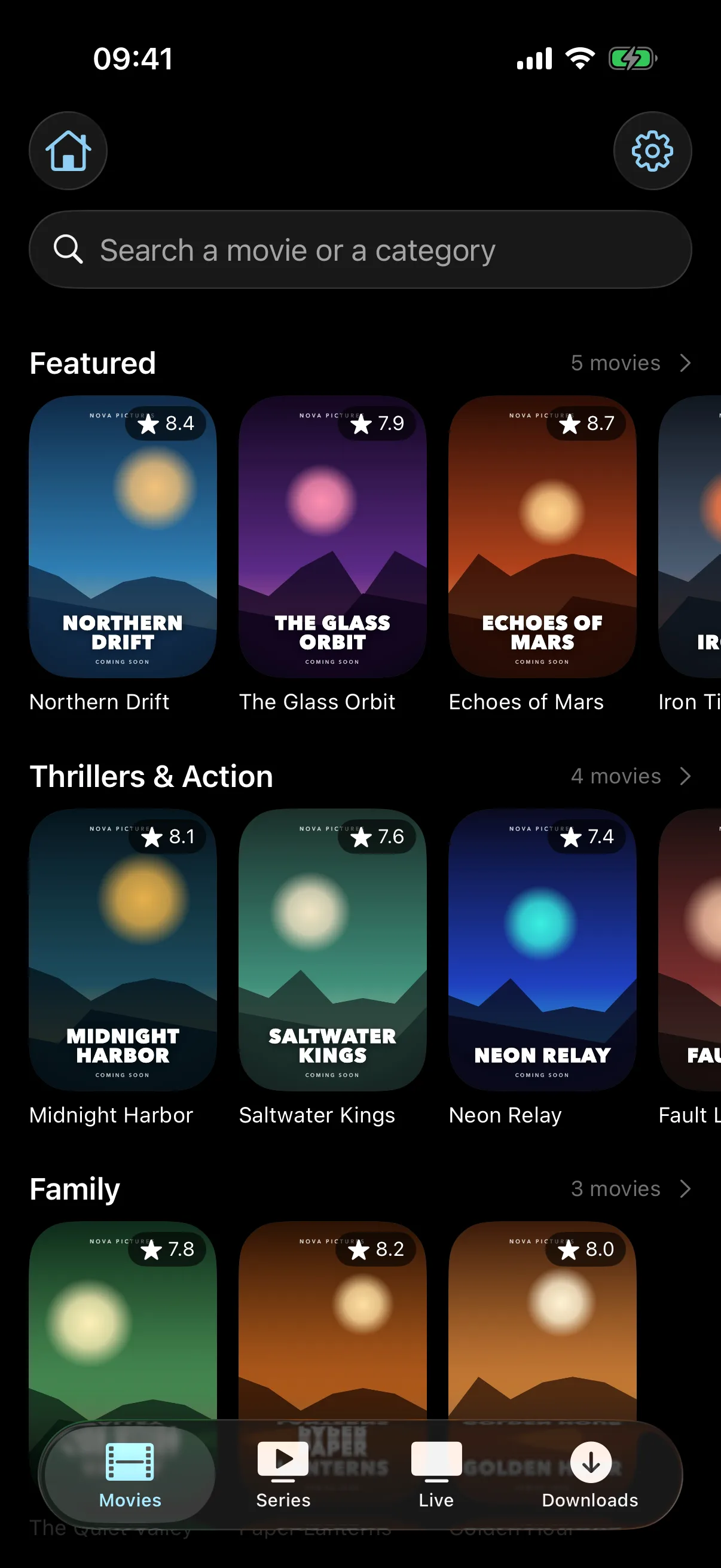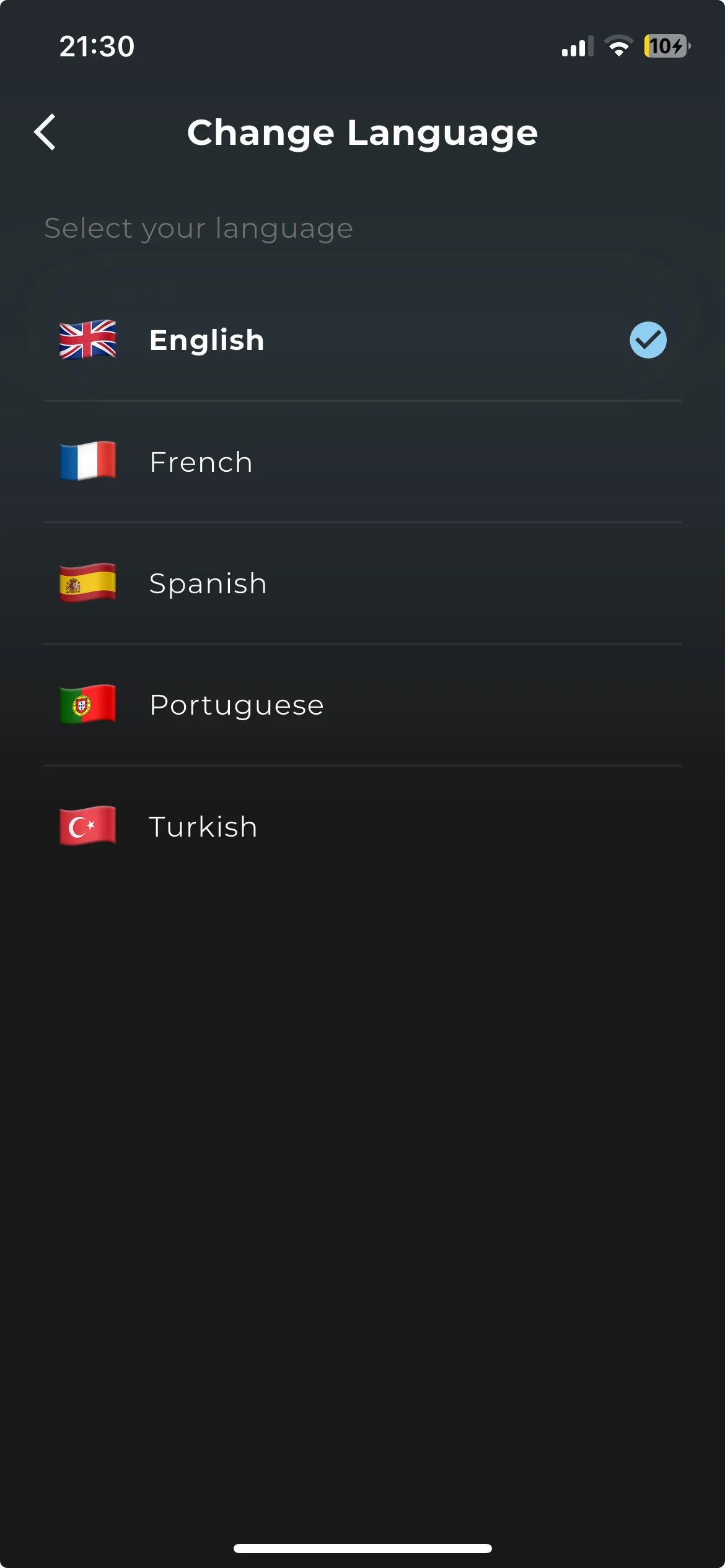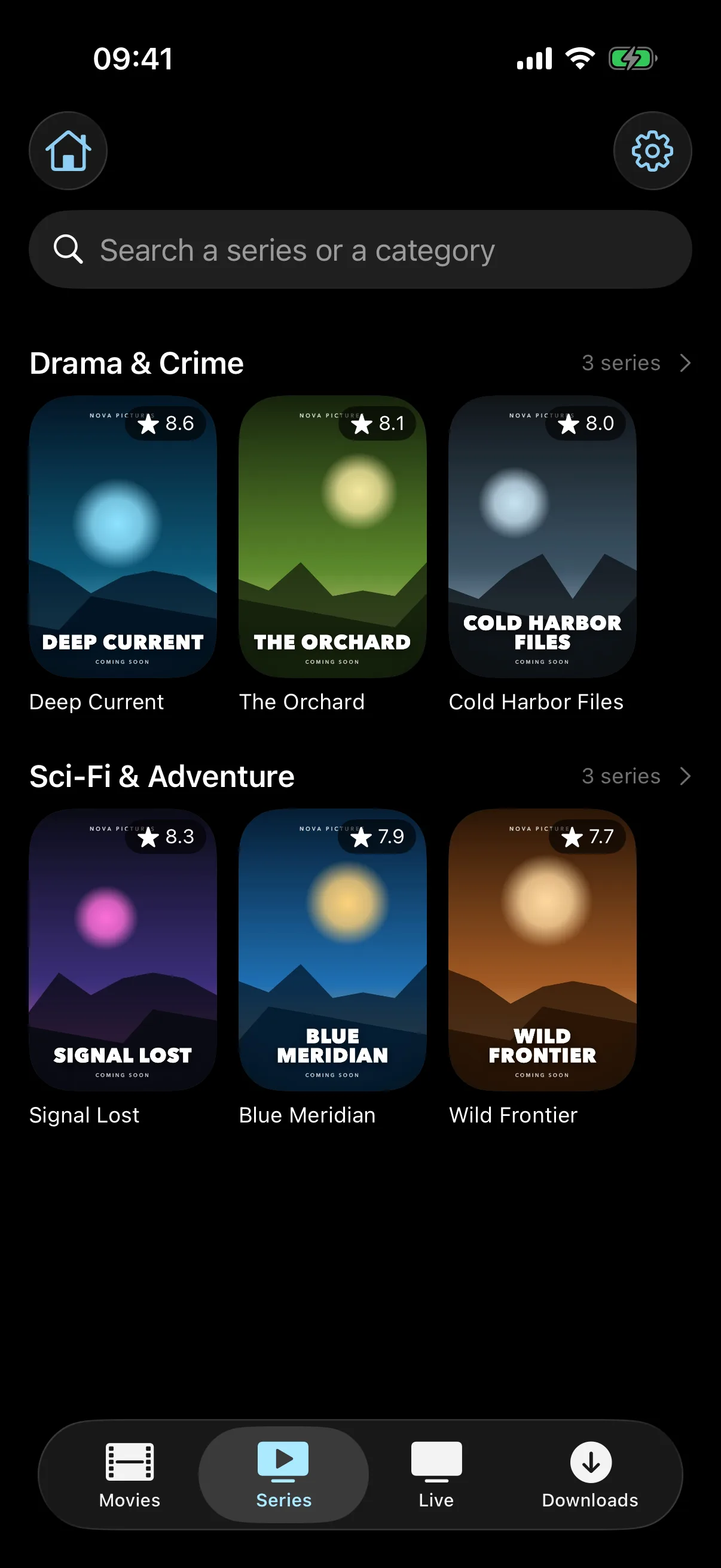
Want to watch your IPTV content on the big screen? EDGE IPTV makes it incredibly easy to cast your favorite channels, movies, and shows directly to your Chromecast-enabled TV or device. This complete guide will walk you through the entire process, from first-time setup to troubleshooting common issues.
What You'll Need
Before You Start:
- EDGE IPTV App - Installed on your iPhone or iPad
- Chromecast Device - Chromecast, Chromecast Ultra, or TV with built-in Chromecast
- Same Wi-Fi Network - Both your iPhone/iPad and Chromecast must be on the same network
- Active IPTV Subscription - With channels/content configured in EDGE IPTV
How to Cast IPTV to Chromecast
Casting from EDGE IPTV is incredibly simple. The entire process takes less than 30 seconds once you're set up. Here's exactly what to do:
Step 1: Open EDGE IPTV
Launch the EDGE IPTV app on your iPhone or iPad. Make sure you're connected to the same Wi-Fi network as your Chromecast device.
Step 2: Start Playing Content
Browse your channels, movies, or shows and tap on what you want to watch. The content will start playing on your iPhone/iPad first. This is normal - you'll cast it to your TV in the next step.
Step 3: Tap the Chromecast Button
While the content is playing, look for the Chromecast icon in the top right corner of the video player. It looks like a TV screen with Wi-Fi waves in the corner.
Where to Find It:
The Cast button appears in the player controls, in the top right area. If you don't see it immediately, make sure your Chromecast is powered on and connected to the same network.
Step 4: Accept Permissions (First Time Only)
If this is your first time casting, iOS will show a popup asking for permission to find and connect to devices on your local network.
Important:
You MUST tap "Allow" or "OK" on this permission popup. Without this permission, EDGE IPTV cannot discover your Chromecast devices on the network. If you accidentally denied it, you'll need to go to iPhone Settings → EDGE IPTV → Local Network and enable it.
Step 5: Choose Your Chromecast Device
After tapping the Cast button (and accepting permissions if needed), a list of available Chromecast devices will appear. This includes:
- • Your Chromecast dongle(s)
- • TVs with built-in Chromecast
- • Google TV devices
Tap on the device where you want to display the content.
⏳ Step 6: Wait for Connection
Your content will begin casting to the TV. You'll see a "Casting..." or "Connected" indicator on your iPhone/iPad. The video will disappear from your phone and appear on your TV screen within 2-5 seconds.
Step 7: Control Playback
Your iPhone/iPad now acts as a remote control. You can:
- • Pause and resume playback
- • Adjust volume
- • Skip forward/backward
- • Stop casting and return to phone playback
- • Switch to a different channel or video
The content plays directly from the internet to your Chromecast, so you can even lock your phone or use other apps without interrupting playback!
Success!
You're now watching IPTV on your big screen! To stop casting, tap the Cast button again and select "Disconnect" or "Stop Casting".
Troubleshooting: Chromecast Not Showing Up
If you don't see your Chromecast device in the list when you tap the Cast button, try these solutions in order:
Solution 1: Verify Same Network
Check Network Connection
Your iPhone/iPad:
- 1. Go to Settings → Wi-Fi
- 2. Note the network name (e.g., "Home_WiFi")
Your Chromecast:
- 1. Open the Google Home app
- 2. Tap on your Chromecast device
- 3. Tap the settings gear icon
- 4. Check the Wi-Fi network listed
Important:
Both devices MUST be on the same network. If your router has separate 2.4GHz and 5GHz networks with different names, make sure both devices are on the same one.
Solution 2: Check Local Network Permission
If you denied the local network permission, EDGE IPTV cannot discover Chromecast devices. To fix this:
- 1. Go to iPhone Settings
- 2. Scroll down and find EDGE IPTV
- 3. Tap on it to open app-specific settings
- 4. Find "Local Network" and toggle it ON (green)
- 5. Close Settings and restart EDGE IPTV
Pro Tip:
If you don't see "Local Network" in the settings, it means the app hasn't requested permission yet. Try tapping the Cast button in EDGE IPTV again to trigger the permission request.
Solution 3: Restart Devices
Sometimes a simple restart fixes discovery issues:
- 1. Restart Chromecast: Unplug it for 10 seconds, then plug back in
- 2. Restart Router: Power cycle your Wi-Fi router
- 3. Restart iPhone/iPad: Power it off completely and turn back on
- 4. Force Quit EDGE IPTV: Swipe up from home, swipe away EDGE IPTV, then reopen it
Wait 30 seconds after restarting the router before testing again.
Solution 4: Check Chromecast is Powered On
This sounds obvious, but verify:
- • Chromecast light is on (usually white or dim light)
- • TV is on the correct HDMI input where Chromecast is plugged in
- • Chromecast has power - if using USB power from TV, make sure the TV's USB port provides power when on
Note:
Some older TVs don't power USB ports when the TV is off. If you're using TV USB power, try using the included wall adapter instead.
Solution 5: Check Router Settings
Some router settings can block device discovery:
- • AP Isolation / Client Isolation: Should be DISABLED (prevents devices from seeing each other)
- • Guest Network: If your iPhone is on the guest network, move it to the main network
- • UPnP: Should be ENABLED for automatic device discovery
- • Firewall Rules: Make sure no rules are blocking local network traffic
If you're not comfortable changing router settings, ask your internet provider or a tech-savvy friend for help.
Common Casting Issues & Fixes
Issue: Video Stutters or Buffers on TV
Causes:
- Slow internet connection (need 15+ Mbps for smooth HD streaming)
- Wi-Fi signal weak to Chromecast
- Too many devices using the network
- Router overloaded
Solutions:
- Move Chromecast closer to the router or use a Wi-Fi extender
- Pause downloads/uploads on other devices
- Switch to 5GHz Wi-Fi if available (faster, less interference)
- Test your internet speed at fast.com - need minimum 15 Mbps
- Restart your router to clear congestion
Issue: Audio and Video Out of Sync
Causes:
- TV audio delay settings
- Network latency
- Chromecast firmware outdated
Solutions:
- Check TV audio settings for "Audio Delay" or "Lip Sync" options
- Update Chromecast firmware in Google Home app
- Try disconnecting and reconnecting the cast
- Restart both Chromecast and the app
Issue: Cast Disconnects Randomly
Causes:
- Phone entering low power mode
- Network dropping connection
- Chromecast overheating
Solutions:
- Keep your iPhone charged (disable Low Power Mode)
- Ensure Chromecast has ventilation (not behind TV in enclosed space)
- Use a high-quality HDMI extension cable to move Chromecast away from hot areas
- Check for router firmware updates
Issue: "Unable to Cast" Error Message
Causes:
- IPTV stream doesn't support casting (rare)
- Network connectivity lost mid-stream
- Chromecast busy with another app
Solutions:
- Try a different channel or content to see if issue is stream-specific
- Force stop Google Home app and restart it
- Reboot Chromecast (unplug for 10 seconds)
- Check if other apps can cast successfully (YouTube, Netflix) to isolate the problem
Pro Tips for Best Casting Experience
Tip 1: Use 5GHz Wi-Fi When Possible
If your router supports dual-band (2.4GHz and 5GHz), connect both your iPhone and Chromecast to the 5GHz network for faster speeds and less interference. 5GHz provides much better streaming quality.
Tip 2: Position Chromecast Strategically
Don't hide your Chromecast behind the TV where Wi-Fi signal is weakest. Use an HDMI extender cable to position it in a spot with better signal reception. Even 6 inches can make a difference.
Tip 3: Keep Firmware Updated
Chromecast updates automatically, but you can manually check in Google Home app → Device Settings → Check for Updates. Updated firmware improves performance and fixes bugs.
Tip 4: Use Wall Power, Not TV USB
For most reliable performance, power your Chromecast using the included wall adapter rather than your TV's USB port. TV USB ports often provide insufficient or inconsistent power.
Tip 5: Don't Close EDGE IPTV
While Chromecast streams directly from the internet, EDGE IPTV still needs to run in the background for playback controls. You can lock your screen or switch apps, but don't force-quit EDGE IPTV while casting.
Chromecast vs AirPlay: Which is Better?
| Feature | Chromecast | AirPlay |
|---|---|---|
| Device Independence | ✓ Yes | ✗ No |
| Battery Impact | Low | High |
| Setup Difficulty | Very Easy | Easy |
| Device Cost | $30-$50 | $129+ (Apple TV) |
| Stream Quality | Excellent | Excellent |
| Multi-user Control | ✓ Yes | ✗ No |
Our Recommendation
Chromecast is the better choice for IPTV streaming for most users. It's more affordable, drains less battery, and allows you to use your phone freely while streaming. AirPlay requires constant phone connection and is more expensive (requires Apple TV). Choose AirPlay only if you already own Apple TV and prefer the Apple ecosystem.
Frequently Asked Questions
Can I cast IPTV to any TV?
You can cast to any TV that has a Chromecast device connected (dongle or built-in). Most modern smart TVs have Chromecast built-in. If your TV doesn't, you can buy a Chromecast dongle for $30-$50 and plug it into any HDMI port.
Does casting use my phone's data?
No. Once you initiate casting, your Chromecast streams the content directly from the internet - your phone just acts as a remote control. This means you can lock your phone, use other apps, or even leave the room without interrupting playback.
Why is there a delay when casting?
A small delay (1-3 seconds) when starting to cast is normal as the Chromecast establishes the connection and buffers the stream. If you experience longer delays or stuttering during playback, it's usually due to slow internet or weak Wi-Fi signal to the Chromecast.
Can multiple people control the cast?
Yes! Anyone on the same Wi-Fi network running EDGE IPTV can see the active cast session and take control. This is great for families - anyone can pause, skip, or change channels without needing the original person's phone.
Will casting work if I have a VPN enabled?
It depends. If the VPN is on your router (protecting all devices), casting will work fine. If the VPN is only on your iPhone, it might block local network discovery. Try temporarily disabling the VPN, starting the cast, then re-enabling the VPN. The cast should continue working.
Ready to Cast IPTV to Your Big Screen?
Download EDGE IPTV and start streaming on your TV in under 2 minutes
Start your 7-day free trial✓ One-Tap Chromecast ✓ Works on All TVs ✓ No Extra Apps Needed ✓ Free Forever