How to Install IPTV on iPhone & iPad
Complete step-by-step guide to install and configure EDGE IPTV on iPhone and iPad. Learn how to set up Xtream codes in 30 seconds.
What You'll Need:
- ✓ iPhone or iPad running iOS 12.0 or later
- ✓ IPTV subscription with Xtream codes
- ✓ Stable internet connection
- ✓ EDGE IPTV app (recommended for best experience)
Download the Best IPTV Player for iOS
The first step is to download a reliable IPTV player. We highly recommend EDGE IPTV as it's specifically designed for iPhone and iPad, offering the smoothest streaming experience with advanced features.
- Quick Xtream setup in seconds
- Chromecast support for big screen viewing
- Offline downloading to watch without internet
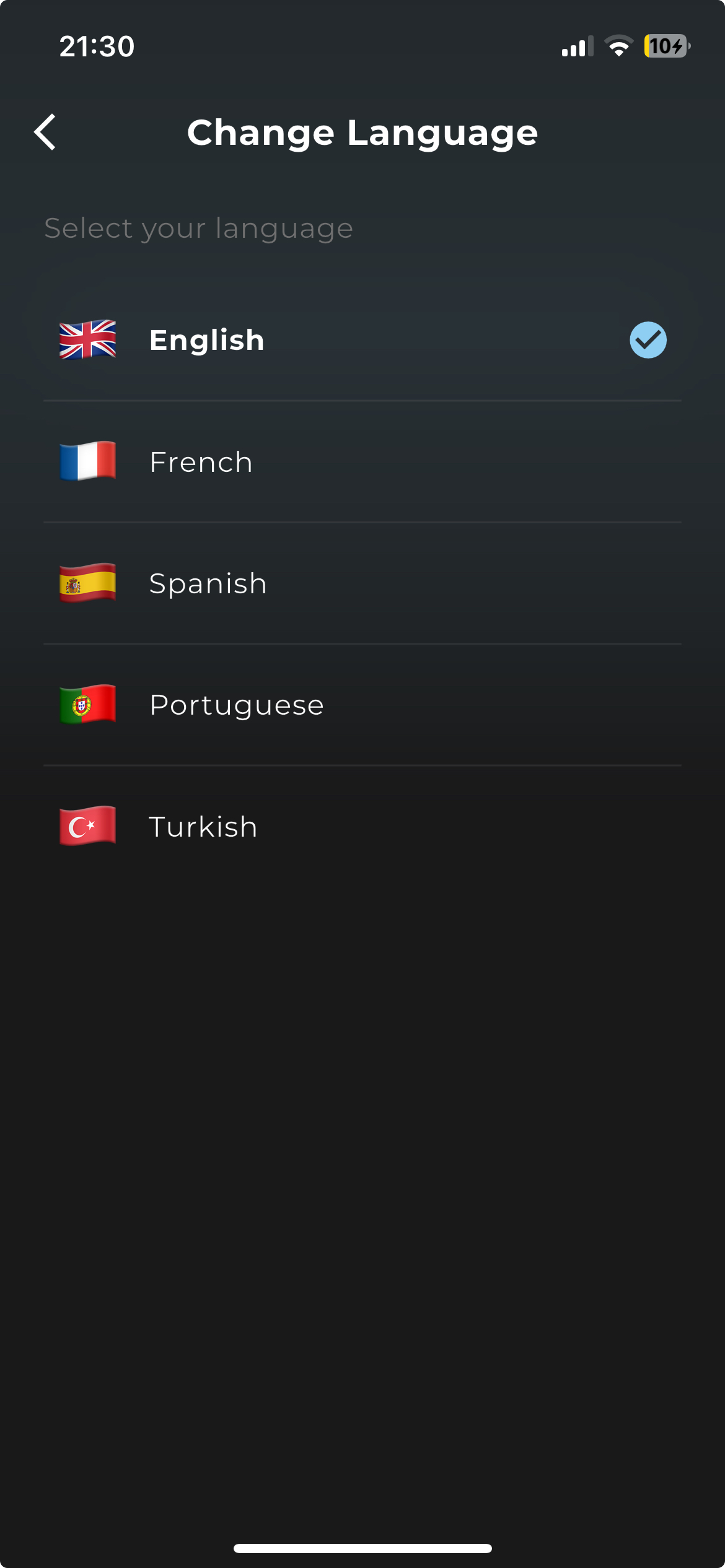
- Multilingual interface (English, French, Spanish, Portuguese, Turkish)
- 5/5 stars rating with 1,000+ downloads
Launch the App and Select Language
Once installed, open EDGE IPTV. You'll be greeted with a beautiful interface where you can select your preferred language. The app supports multiple languages to make you feel at home.
Configure Xtream Codes
EDGE IPTV makes it incredibly easy to connect using Xtream codes. You don't need to deal with complex M3U playlists.
- 1. Tap on the "Add Playlist" or "+" button.
- 2. Select "Xtream Codes" option.
- 3. Enter the details provided by your IPTV provider:
- Server URL: (e.g., http://line.iptvdomain.com)
- Username: Your username
- Password: Your password
- 4. Tap "Connect" or "Login".
Enjoy Your Content!
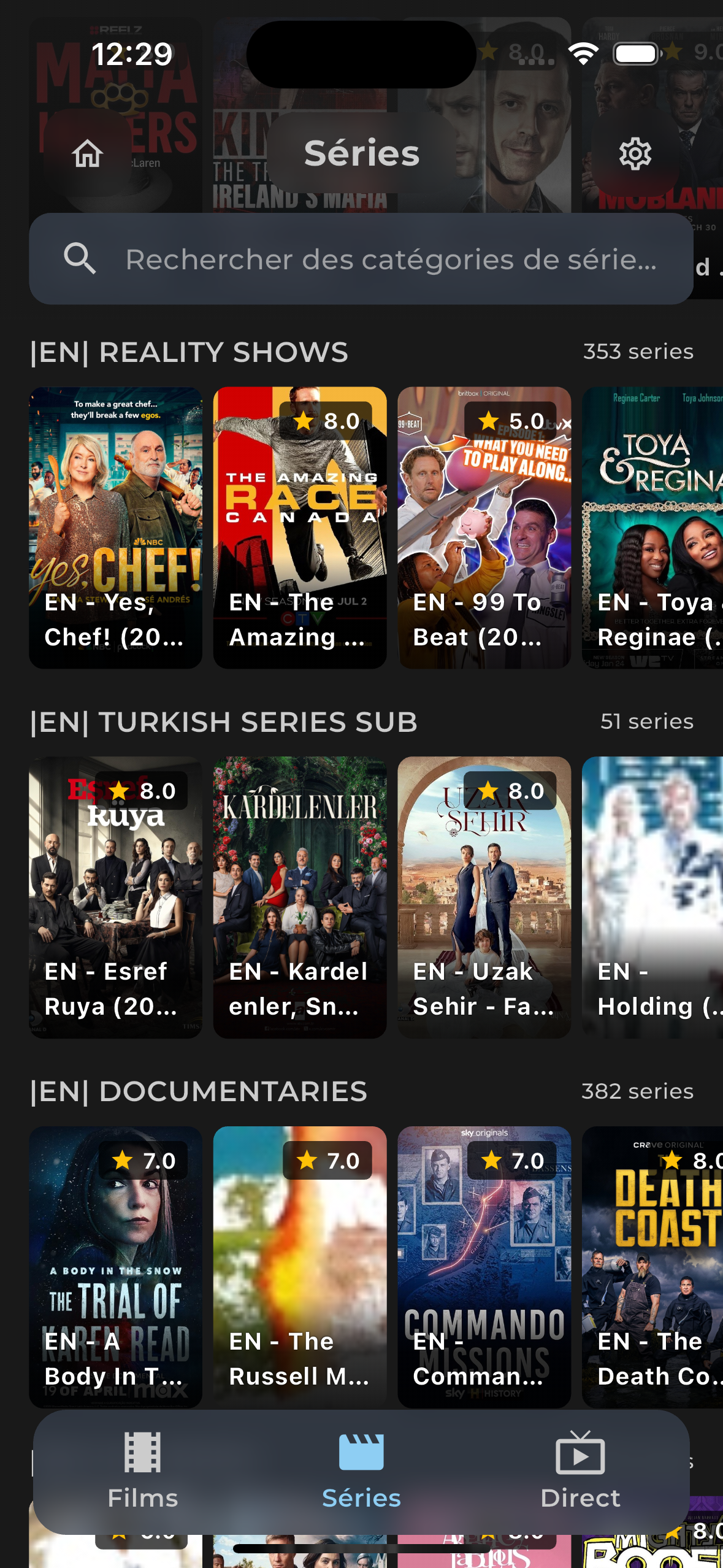
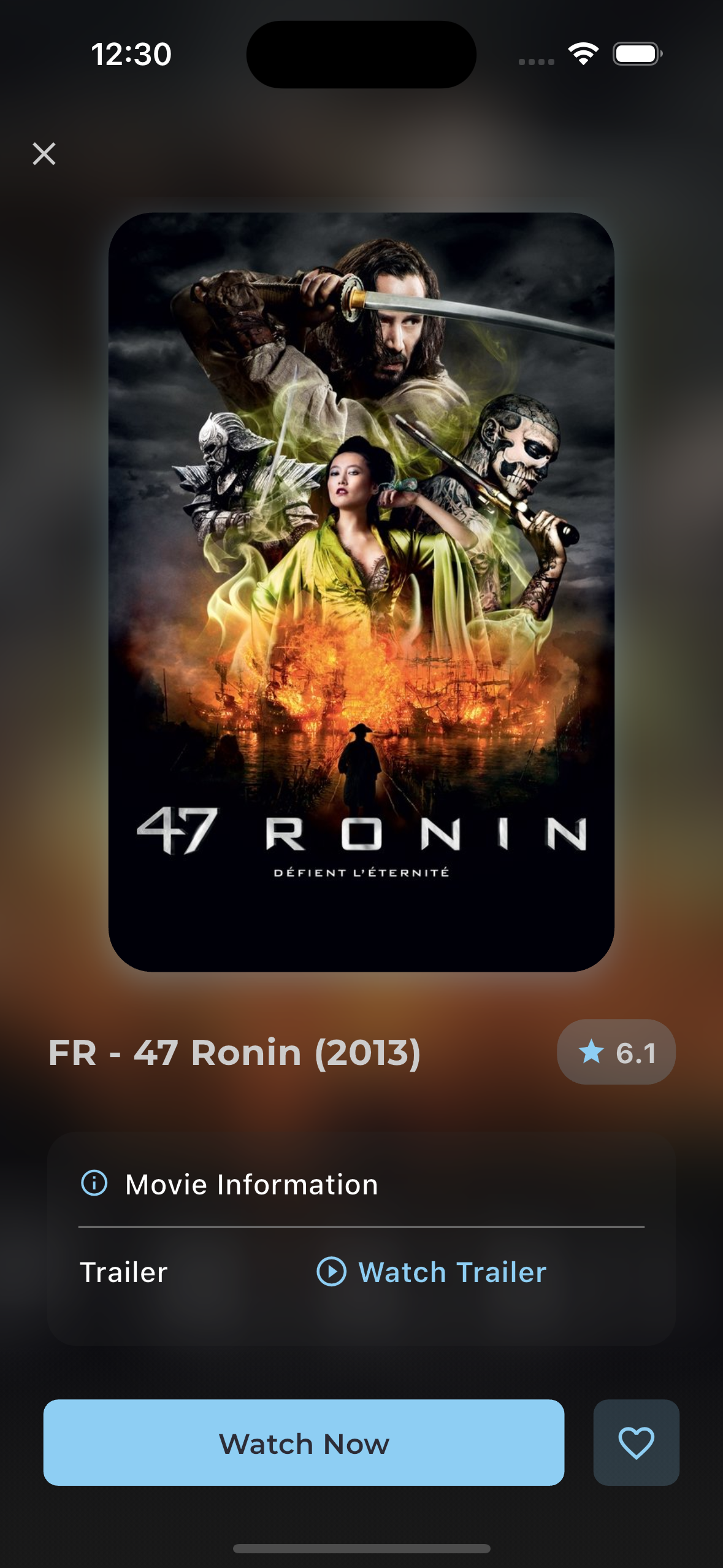
That's it! EDGE IPTV will load your channels, movies, and series. You can now browse through categories, search for your favorite content, and start streaming immediately.
🎉 Congratulations!
You've successfully set up IPTV on your iPhone or iPad. Now you can enjoy thousands of channels, movies, and series with the best streaming quality. Don't forget to explore features like Chromecast casting and offline downloads!